What Is a Macro in Excel?
A practical introduction to recording repetitive work, understanding the VBA behind it, and choosing the right kind of spreadsheet automation.
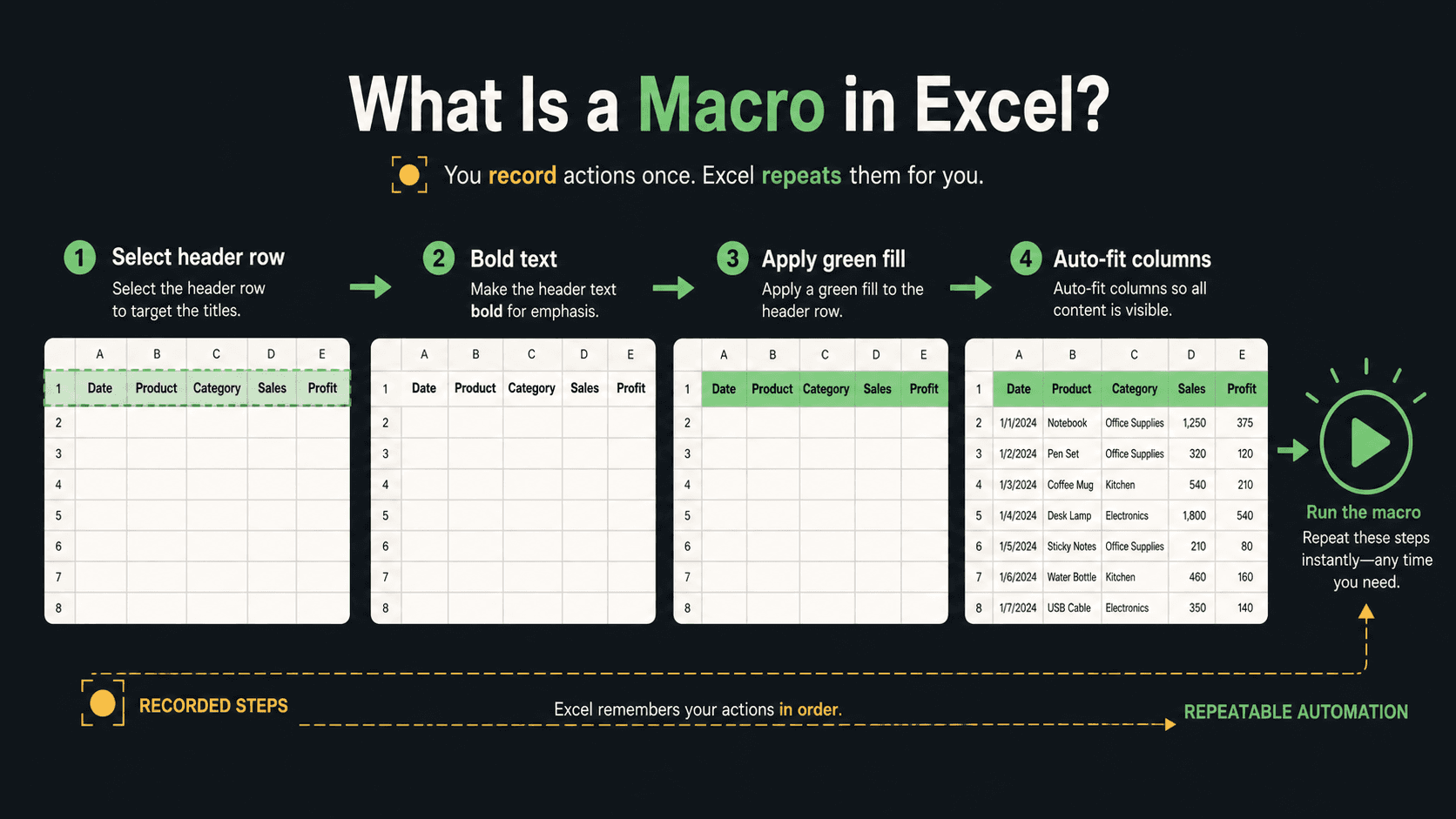
An Excel macro is a recorded or coded set of instructions that performs a series of actions automatically. A macro can format a report, clean imported data, copy values between worksheets, refresh a recurring workbook, or complete dozens of other steps with one command.
Most people create their first macro with Excel's Macro Recorder. The recorder watches what you do and converts those actions into Visual Basic for Applications, usually called VBA. You do not need to know programming to record a useful macro, although VBA gives you more control when the workflow becomes complex.
Instead of following the same five steps every Friday, you show Excel the steps once and ask it to replay them the next time.
How do Excel macros work?
When you start the Macro Recorder, Excel tracks many of the commands you perform: selecting cells, entering values, applying formatting, creating formulas, sorting data, and more. When you stop recording, Excel stores the generated VBA procedure in a module.
Excel watches the commands you perform.
The actions are translated into VBA instructions.
Excel repeats the stored steps when requested.
Common tasks people automate with macros
- Format weekly or monthly reports consistently
- Clean imported data and remove unwanted rows
- Copy data into a reporting template
- Create, rename, or reorganize worksheets
- Refresh calculations and export a finished report
How to record your first macro
This example records a simple header-formatting routine. Start with a test workbook, not an important production file, because recorded actions cannot always be undone after a macro runs.
- 1
Show the Developer tab
On Windows, open File → Options → Customize Ribbon, then select Developer. On Mac, use Excel → Preferences → Ribbon & Toolbar.
- 2
Start recording
Select Developer → Record Macro. Name it
FormatHeaderand store it in the current workbook. - 3
Perform the task once
Select the header row, make the text bold, add a fill color, and auto-fit the columns. Avoid unrelated clicks because the recorder may capture them too.
- 4
Stop the recording
Select Developer → Stop Recording. Excel has now saved the procedure.
- 5
Run and test it
Open Developer → Macros, select
FormatHeader, and choose Run. Test the macro on a copy of your data before relying on it.
Microsoft's official guide covers recorder behavior and Windows/Mac differences in more detail: Automate tasks with the Macro Recorder.
A simple VBA macro example
A recorded formatting macro may produce more code than the example below, but the basic shape is the same: a named procedure contains the instructions Excel should execute.
Sub FormatHeader()
    With Range("A1:F1")
        .Font.Bold = True
        .Interior.Color = RGB(217, 225, 242)
    End With

    Columns("A:F").AutoFit
End Sub
Sub FormatHeader() starts a procedure named FormatHeader. The With block applies bold text and a background color to cells A1 through F1. The final instruction automatically adjusts the width of columns A through F.
Is a macro the same as VBA?
Not exactly. A macro is the automation you run; VBA is the programming language commonly used to define that automation in desktop Excel. The Macro Recorder is simply one way to generate VBA without writing every instruction yourself.
Macro, formula, Power Query, Office Script, or AI?
Macros are useful, but they are not the best tool for every spreadsheet task. Choose based on what the workflow actually needs to do. Microsoft documents VBA as desktop-focused and Office Scripts as cross-platform, cloud-based automation.
| Tool | Best for | Important limitation |
|---|---|---|
| Formula | Calculations that update with cell values | Does not perform a sequence of interface actions |
| VBA macro | Repeatable desktop Excel actions and custom logic | Does not run in Excel for the web |
| Power Query | Importing, cleaning, combining, and reshaping data | Not intended for general interface automation |
| Office Scripts | Cloud-based Excel automation in supported Microsoft 365 plans | Different API and language from VBA |
| AI workflow | Classifying, extracting, translating, or generating text | Outputs need review and clear instructions |
Platform comparison: Differences between Office Scripts and VBA macros.
Which Excel file types support macros?
If you record a macro and then save the workbook as a standard .xlsx file, Excel will warn you that the VBA project cannot be saved. Choose a macro-enabled format instead.
- .xlsm
- Excel Macro-Enabled Workbook. The usual choice for a workbook containing VBA.
- .xltm
- Excel Macro-Enabled Template. Useful when new workbooks should share a macro.
- .xlsb
- Excel Binary Workbook. Can store VBA and may be smaller for large workbooks.
- .xlsx
- Standard Excel Workbook. Cannot store VBA macros.
Format reference: File formats that are supported in Excel.
Are Excel macros safe?
A macro you recorded yourself can be a practical productivity tool. A macro from an unknown source is different: VBA can modify files and perform actions beyond formatting a worksheet. That makes malicious macros a real security risk.
Confirm who sent the file, why it needs code, and whether you expected it. Keep Microsoft 365 and your security software updated, and use your organization's approved macro policy.
- Run macros only from sources you trust.
- Test new automation on a copy of the workbook.
- Inspect unfamiliar VBA or ask a qualified reviewer.
- Avoid using “Enable all macros” as a permanent setting.
For the current security options, see Microsoft's macro security settings.
Use macros for fixed steps. Use AI when the content changes.
A macro is strongest when the same action should produce the same result. If the work involves understanding language—such as translating product data, classifying feedback, extracting fields, or drafting descriptions—an AI spreadsheet workflow may be a better fit.
SheetsX brings those workflows to Google Sheets today. It does not replace VBA; it solves a different class of spreadsheet work.
Frequently asked questions
What is a macro in Excel in simple terms?
A macro is a saved set of instructions that tells Excel to repeat a task automatically. You perform the task once while Excel records it, then run the macro whenever you need the same steps again.
Do I need to know VBA to create an Excel macro?
No. Excel's Macro Recorder can create a macro from your clicks and edits without requiring you to write code. Learning some VBA becomes useful when you need conditions, loops, custom logic, or error handling.
What is a macro-enabled file type in Excel?
The most common macro-enabled workbook format is .xlsm. A standard .xlsx workbook cannot store VBA macros. Excel also supports .xltm for macro-enabled templates and .xlsb for binary workbooks that can contain macros.
Can Excel macros contain viruses?
Yes. VBA macros can run code and may be used maliciously. Do not enable macros in an unexpected file or a workbook from an untrusted source. Review the code or ask your IT team before running it.
Do VBA macros run in Excel for the web?
Excel for the web can open a workbook that contains VBA, but it cannot create, run, or edit VBA macros. For browser-based automation, Microsoft provides Office Scripts for supported Microsoft 365 plans.
What is the difference between a macro and a formula?
A formula calculates a value in a cell and recalculates when its inputs change. A macro performs a sequence of actions, such as formatting cells, moving data, refreshing a report, or saving a file.
Sources and editorial notes
Sam Ward reviewed the Microsoft documentation below while preparing this guide. Product interfaces and licensing can change, so use the linked documentation for the latest platform-specific details.
- Automate tasks with the Macro RecorderMicrosoft Support
- Work with VBA macros in Excel for the webMicrosoft Support
- File formats that are supported in ExcelMicrosoft Support
- Differences between Office Scripts and VBA macrosMicrosoft Learn
- Change macro security settings in ExcelMicrosoft Support